Preparing the Container Screen for an ALV Grid Control
The Control Framework Architecture
The graphical user interface (GUI) in the SAP system is based on SAP GUI windows. These GUI windows are screens from the technical view point of the programmer.
The application program communicates with the screen at runtime using various services of the runtime system (ABAP processor and dynpro processor). This communication also uses services in the SAP GUI, such as managing the windows and their pop-up levels, data transfer, and so on.
You can use screen elements other than those provided in the Screen Painter in SAP GUI windows. These additional screen elements are known as controls. Controls are standalone binary software components that are reusable. As a developer, you can integrate one or more controls in your user dialogs and use the functions that are available.

Graphic Illustration of the Objects
Graphically, the connection of a GUI control to a screen is a chain of objects. An area is reserved on the screen to display a control. A container control is placed in this area. The ALV Grid is then linked to the container and is displayed in the reserved screen area.

Container Screen Creation
Consider a simple dialog program with a selection screen as its initial screen and a screen for displaying an ALV.
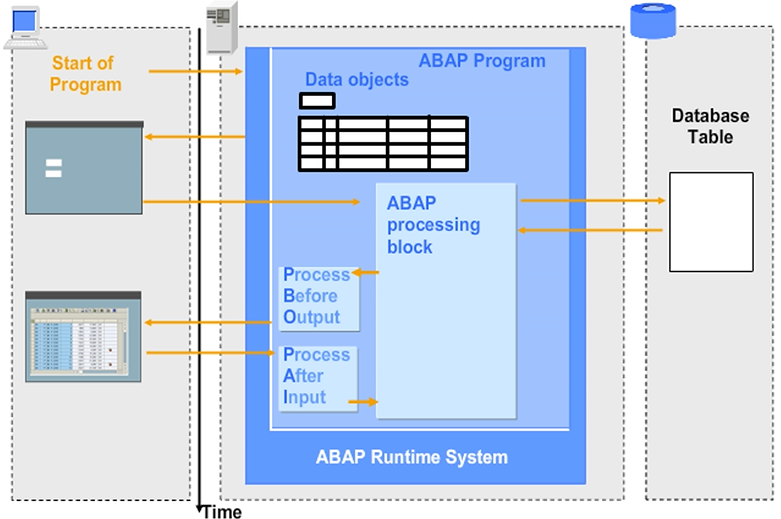
When the program is executed, the following steps happen:
- When the program starts, the system loads its program context and prepares memory space for the data objects of the program. The selection screen is displayed.
- The user enters data and chooses the Execute button to continue the program. In a processing block, the data chosen by the user on the selection screen is read from the database and transferred to an internal table.
- The processing logic calls a screen.
- A processing block Process Before Output (PBO) for the called screen is triggered. In the PBO, you prepare the ALV.
- Any user action on the screen, for example, pressing ENTER, choosing a menu entry, clicking a button, and so on, returns control to the application and triggers a processing block for the screen. This processing block is known as Process After Input (PAI).
Note: There are specific ALV user actions that do not necessarily trigger a PAI or PBO cycle.
Screen Components
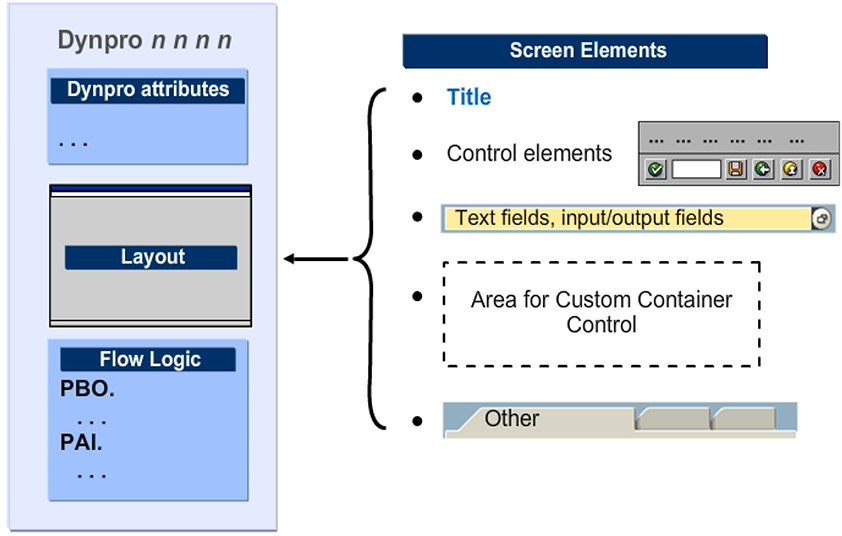
A screen has the following parts:
- Attributes
- Display (layout)
- Element list
- Flow logic
Flow logic does not contain ABAP code, instead it consists of special flow logic statements
Creation of a Screen
When you create a screen, perform the following tasks.
- Define the basic screen attributes
- Define the screen layout in the graphical screen painter
- Set the properties of the screen elements
- Program the flow logic

Creating a Screen – Screen Attributes
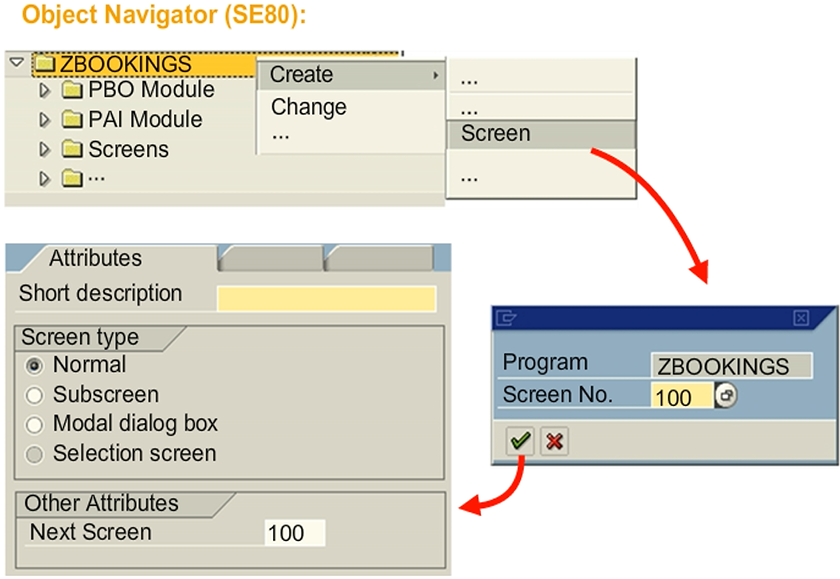
To create a screen from the Object Navigator (transaction code SE80), proceed as follows:
- In the context menu of the program in the navigation area, choose Create → Screen.
- Enter the screen attributes.
- Enter the screen number and short text.
- Set the screen type to Normal.
- Specify the number of the next screen in the Next Screen
By default, the value in the Next Screen field is the same screen. This prevents the user from leaving the screen by mistake just by pressing ENTER. If you enter 0 (or no value) in the Next Screen field, the system leaves the screen after a user action and returns to the point in the processing logic from which it had been called.
You can also create screens by double-clicking the screen number <nnnn> in the ABAP command CALL SCREEN <nnnn> in the ABAP Editor.
Creating a Screen – Layout
In the left toolbar, choose the Custom Control